Nainstalujte git
Windows
1. Download git
- You have to be online all of the time as Android Studio downloads several updates!
- Měly by fungovat všechny verze gitu. For example https://git-scm.com/download/win.
- Poznačte si cestu instalace. Budete ji potřebovat v dalším kroku.
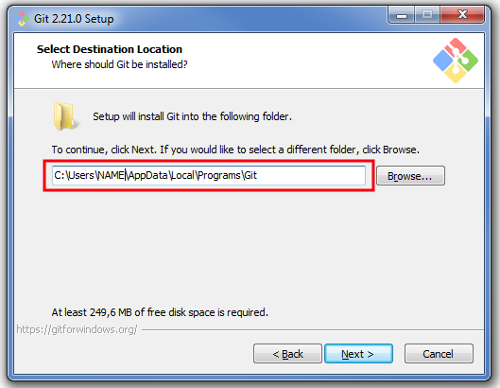
2. Set git path in Android Studio
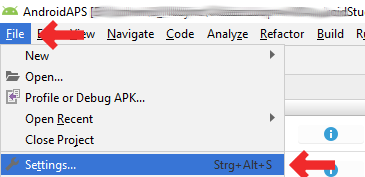
Open File > Settings
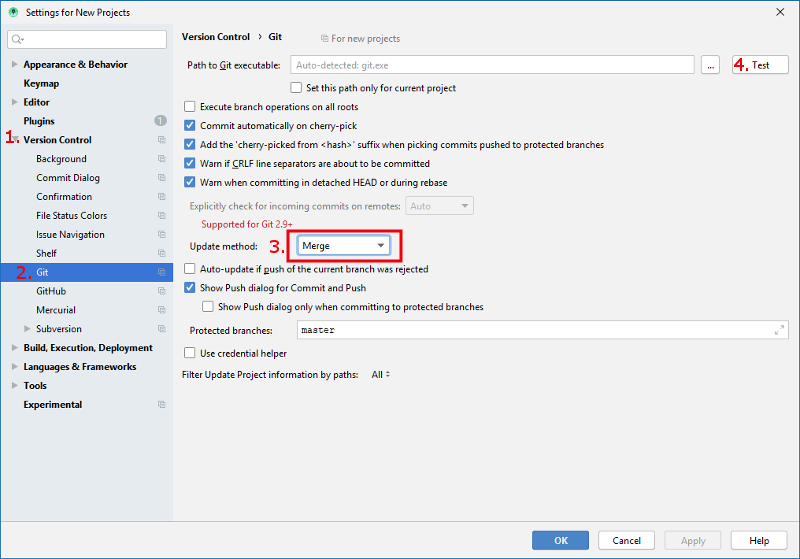
Click the small triangle next to Version Control (1.) to open the sub-menu.
Click Git (2.).
Make sure update method “Merge” (3.) is selected.
Check if Android Studio can locate path to git.exe automatically by clicking the button “Test” (4.)
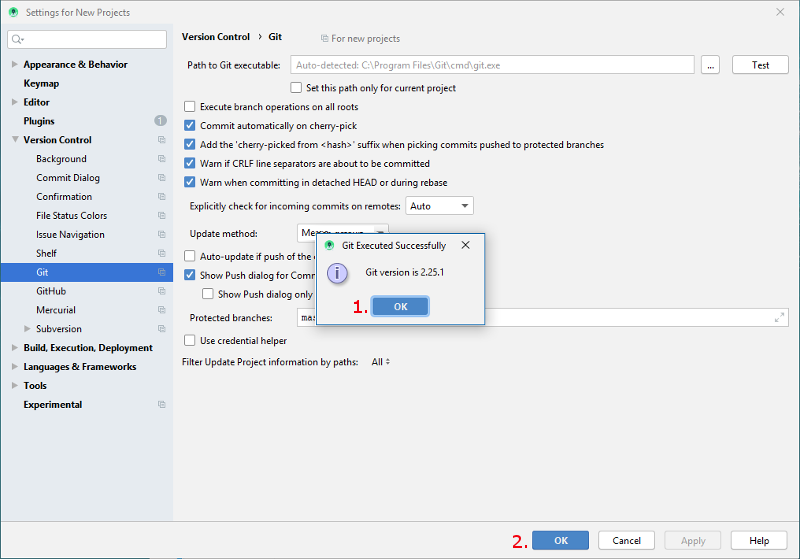
If automatic setting is successful git version will be displayed.
Click “OK” in the dialog box (1.) and “OK” in the settings window (2.).
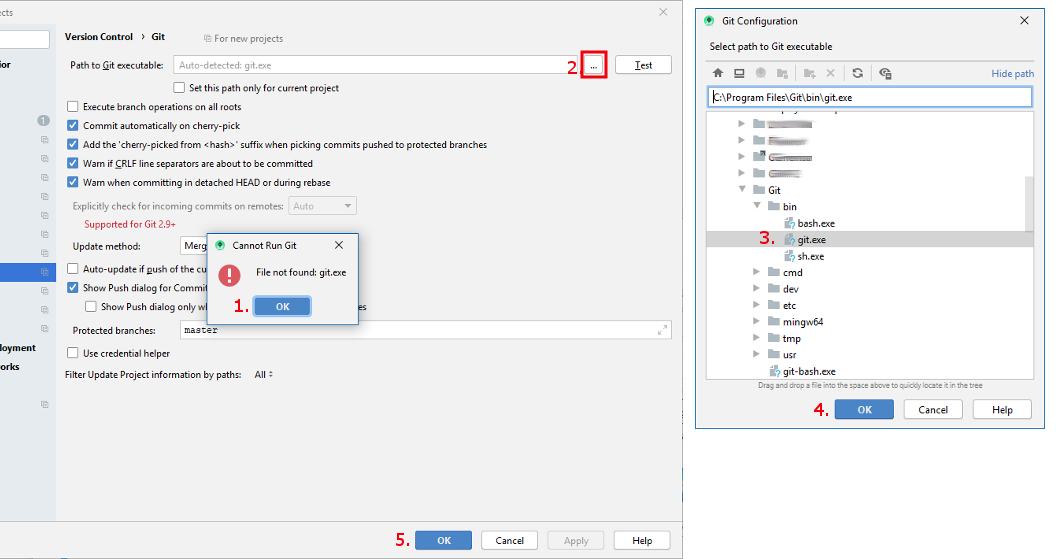
In case file git.exe cannot be found click “OK” in the dialog box (1.) and then the button with the three dots (2.).
Use search function in windows explorer to find “git.exe” if you are unsure where it can be found. You are looking for git.exe located in binfolder.
Select path to git.exe and make sure you selected the one in ** bin** folder (3.) and click “OK” (4.).
Close settings window by clicking “OK” button (5.).
3. Reboot
- Reboot your PC to update System Environment.
4. Check git settings in Android Studio
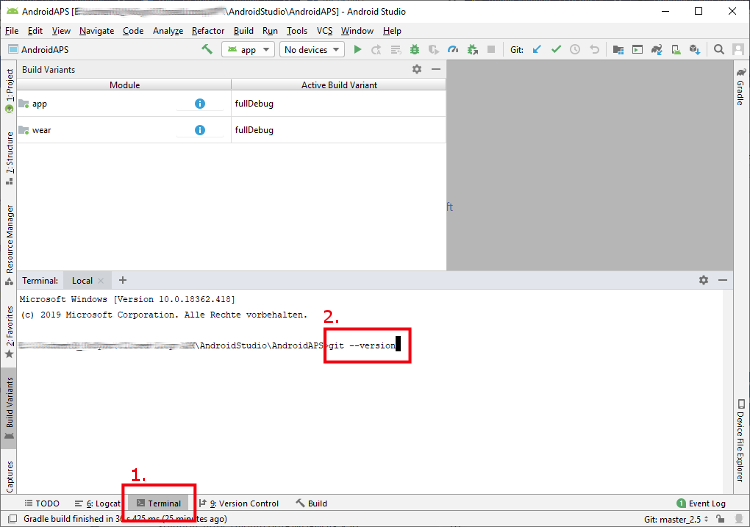
Open Terminal window in Android Studio
Enter “git - -version” (without quotation marks and no spaces between the two - [minus sign]!) and press Return
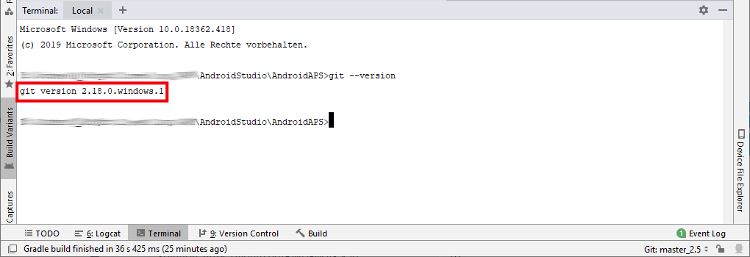
If git is installed and connected properly you will receive an information about the installed version that looks as follows:
Mac
- Měly by fungovat všechny verze gitu. For example https://git-scm.com/download/mac
- Use homebrew to install git:
`$ brew install git`. - For details on installing git see the official git documentation.
- Pokud instalujete git přes homebrew, není třeba měnit žádné předvolby. Pokud by bylo třeba: Najdete je zde: Android Studio - Preferences.